
 Download
Physics Simulation in Koru
Manually stacking, rotating, and arranging multiple objects so they look natural without intersecting meshes can be tedious. Koru’s built-in real-time rigid body physics engine lets you drop, collide, and settle objects with realistic dynamics.
Whether you need to fill a bowl with fruit, scatter dice on a tabletop, or place soda cans naturally inside a basket, doing it by hand with rotation and translation gizmos takes lots of time and rarely looks 100% convincing.
Koru’s physics simulation mode solves this in seconds. It simulates gravity, collisions, and friction in real time directly inside the 3D viewport.
Static vs. Dynamic Objects
In Koru, objects in the scene can act as either static or dynamic bodies during simulation:
- Static objects (default) - these objects remain completely stationary in space and do not fall under gravity. However, their physical collision mesh is fully active, allowing moving objects to bounce off or rest upon them. Floors, tables, trays, and containers (such as the basket in our example) should remain static;
- Dynamic objects - these objects participate actively in the simulation. They respond to gravity, tumble, collide with each other, and settle onto static surfaces.
To turn any object into a dynamic body, select it in the scene tree or viewport and locate the Physics parameters section in the Node properties panel on the right:
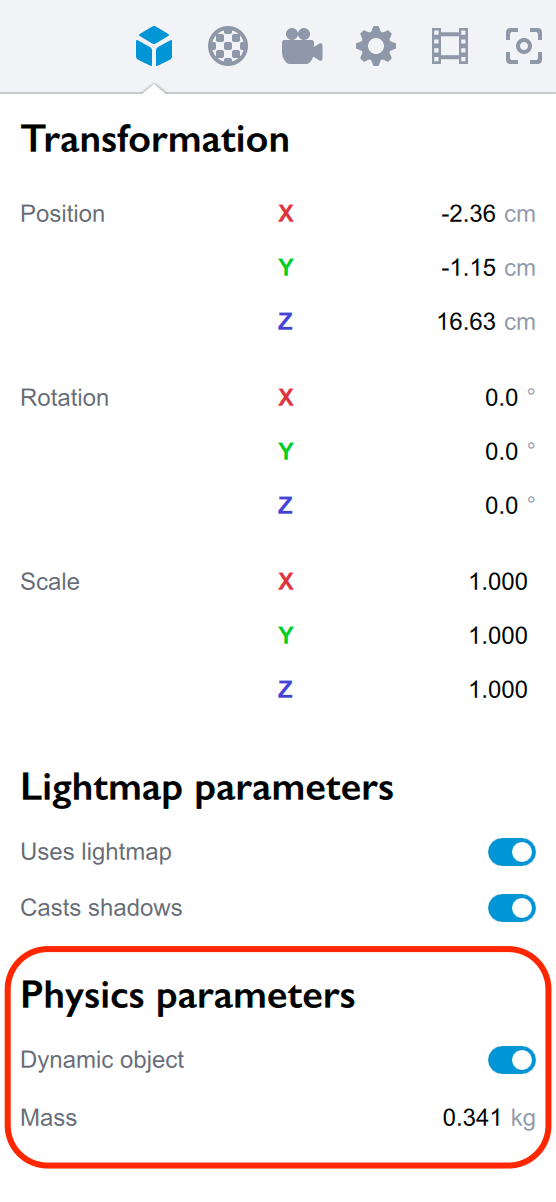
Here you can configure:
- Dynamic object - toggle this switch on to enable physics simulation for the selected node;
- Mass - sets the mass of the object in kilograms. Mass affects inertia and momentum during collisions: heavier objects push lighter ones aside more easily.
Setting Up the Scene
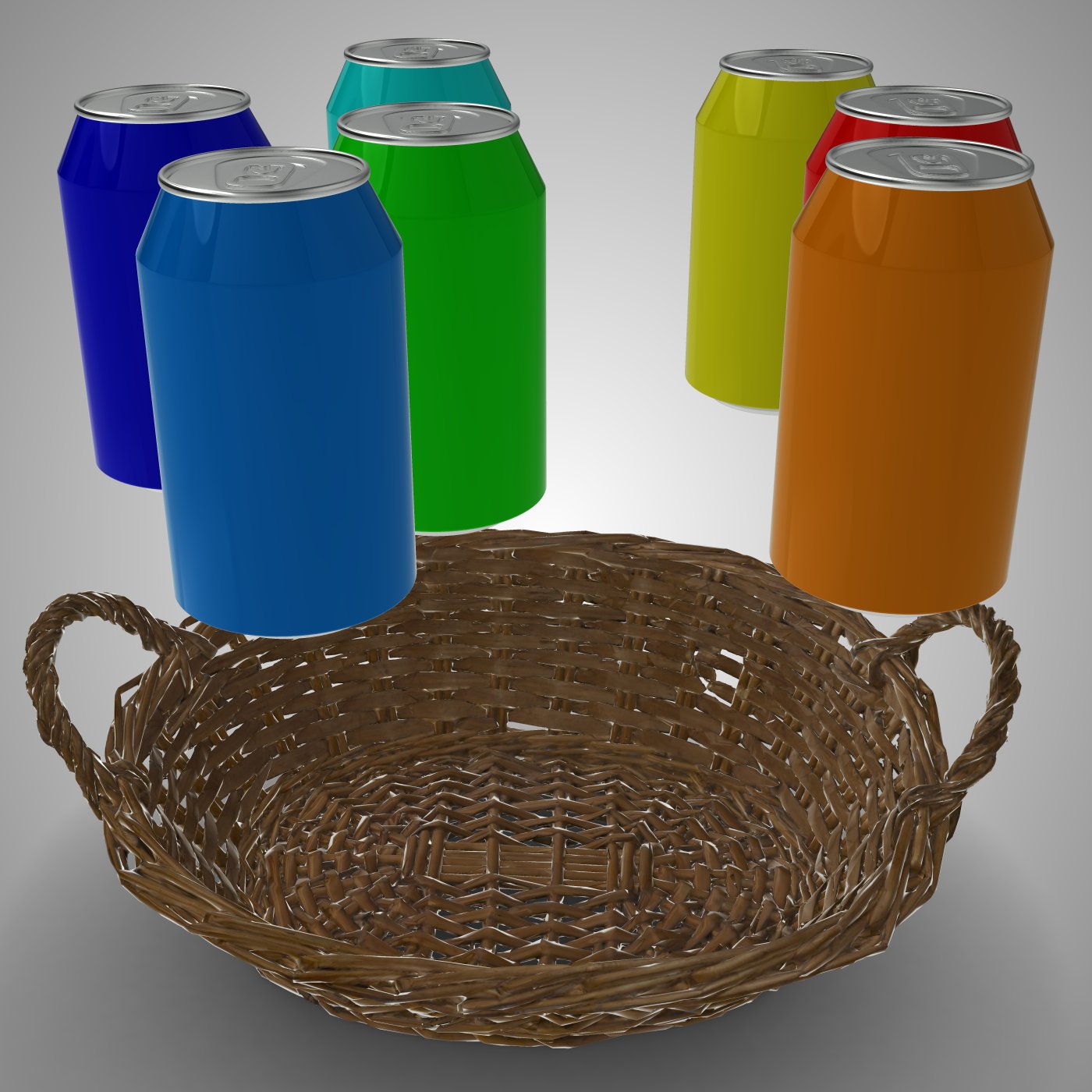
To demonstrate physics simulation, let’s arrange seven beverage cans inside a woven wicker basket. Instead of carefully positioning each can by hand, we’ll let gravity do all the work.
First, position the container (the basket) on the ground. Keep its Dynamic object option turned off so it remains fixed in place.
Next, duplicate or import your objects (the cans) and roughly position them floating in the air above the basket. Enable Dynamic object on all the cans. They do not need to be precisely aligned or angled:
Running the Simulation
To start the simulation, switch to the Physics Simulation mode using any of these methods:
- Click the Physics simulation button on the toolbar (the 8th gizmo button on the left);
- Choose Scene → Physics Simulation in the main menu;
- Press Ctrl+8 on Windows or ⌘+8 on Mac.
While the simulation is running, the toolbar button blinks with a pulsing animation to indicate that physics is active. Objects immediately begin falling under gravity, bouncing, colliding against the basket walls, and settling against each other.
Interactive Dragging and Keyboard Controls
The simulation isn’t just passive — it is fully interactive! You can adjust and guide objects in real time while simulation is running:
- Mouse dragging - click and drag any dynamic object directly in the 3D viewport. Koru attaches an interactive physical spring constraint to the picked point, allowing you to lift cans up, nudge them, or toss them into position while gravity is active;
- Keyboard controls (Arrows & Space) - when a single dynamic object is selected, you can steer it using the Arrow keys (to move it horizontally relative to your current camera view) and press Space to lift it upwards against gravity. Hold Shift to double the movement speed.
Adjusting Gravity
If you want items to fall faster or slower, open the Scene Settings panel and find the Physics section. There you can adjust the scene’s Gravity setting (default is 100 cm/sec, which equals 1 m/sec).
Preserving the Arrangement & Undo
Once the objects have settled into a natural, visually pleasing arrangement, stop the simulation by clicking the Physics simulation toolbar button again or pressing Ctrl+8 / ⌘+8.

When the simulation stops, all objects retain their exact final positions and orientations. Koru also automatically creates a transformation undo step, so if you want to revert back to your original pre-simulation state, simply press Ctrl+Z (Windows) or ⌘+Z (Mac).
That’s All!
With Koru’s physics simulation mode, creating realistic, organically settled 3D scenes is effortless. Give it a try for packaging arrangements, tabletop presentations, or anywhere you need a natural, lifelike touch!